Block or Unblock User
Blocking a user prevents them from accessing BuildNinja, typically due to policy violations or security concerns. Unblocking a user restores access once the issue causing the block is resolved.
Block User
-
Navigate to Users
 and go to Users tab.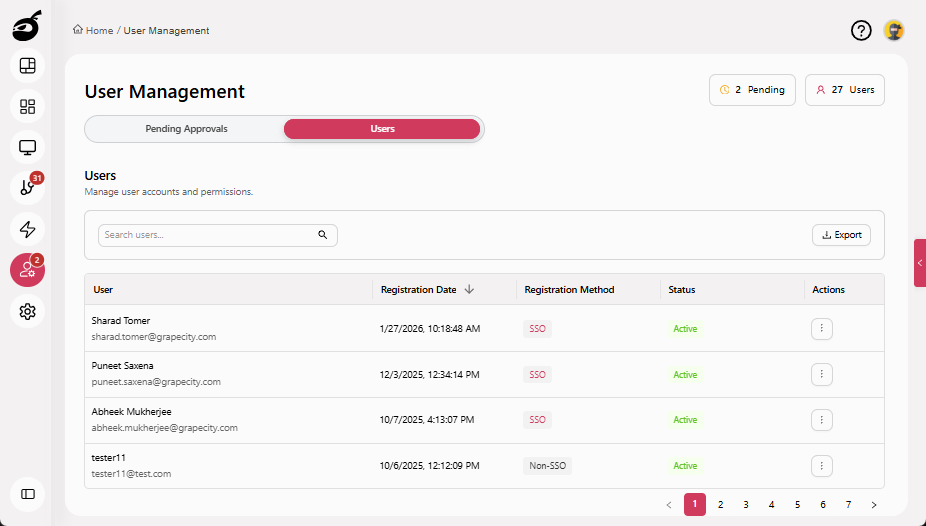
-
Search for the user using the Search Users bar above the user grid.
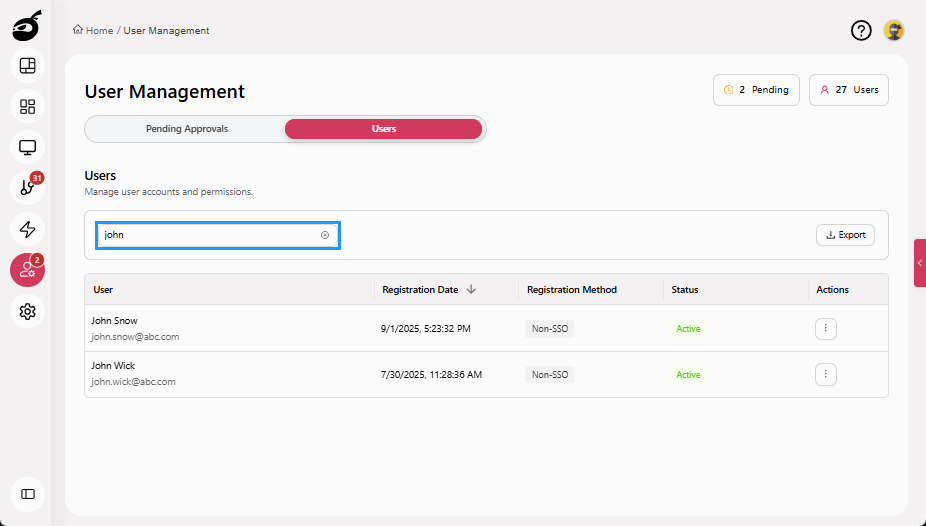
-
Click the Ellipsis ⋮ in the Actions column to open the options menu.
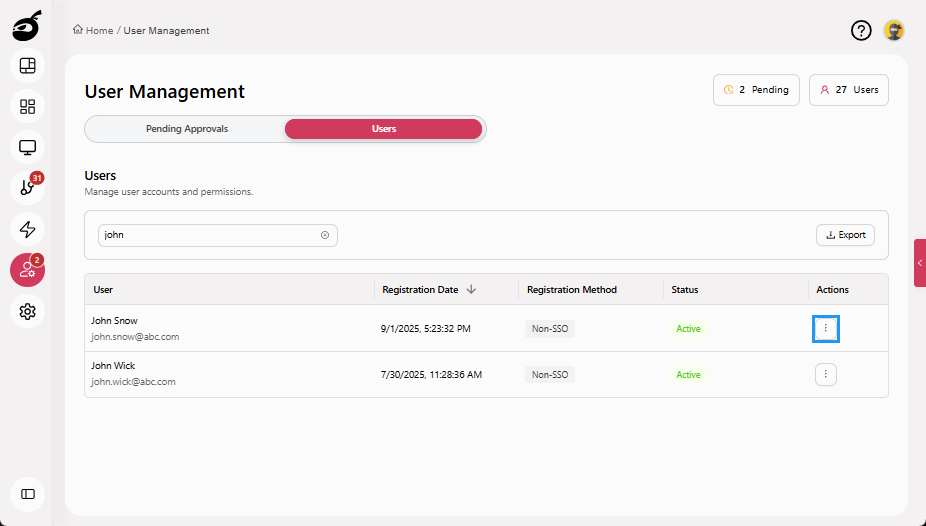
-
Click Block to block the user.
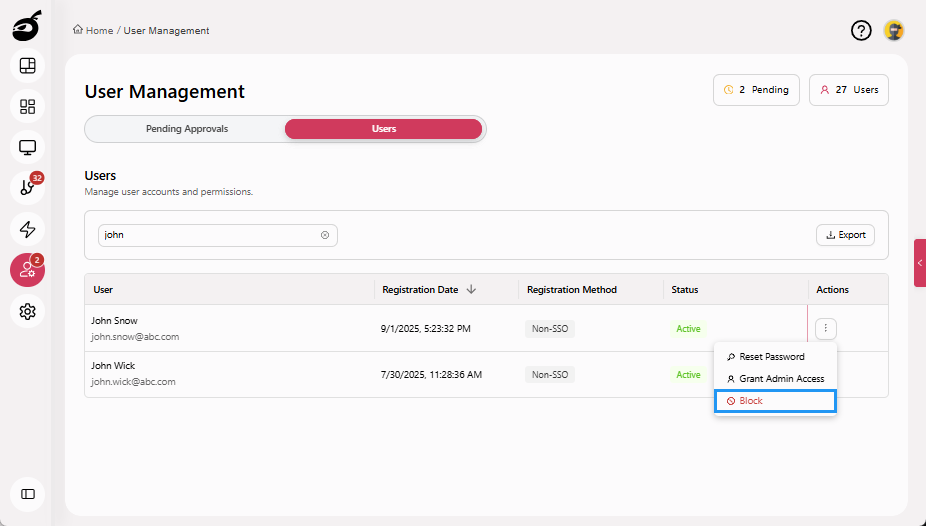
-
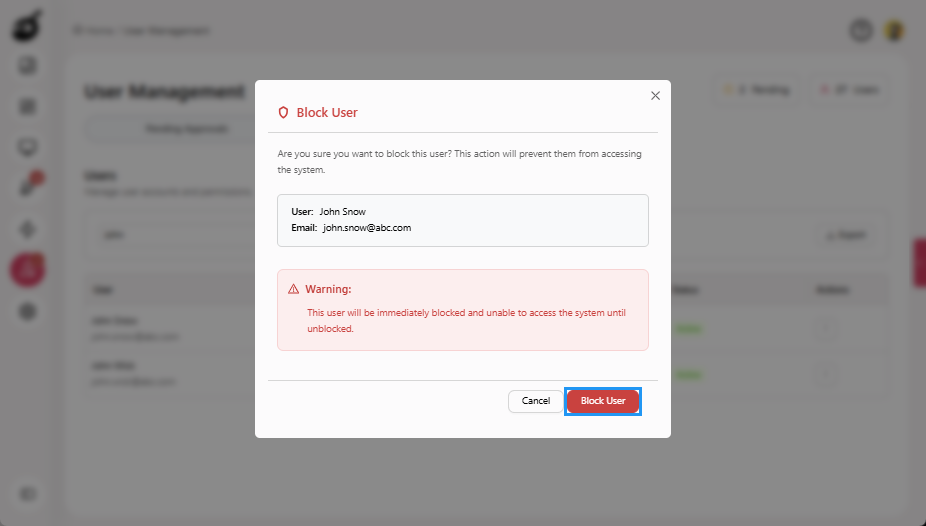
A prompt will appear to confirm the action. Click Block User to block the user.
 note
noteBlocking takes effect immediately, preventing the user from logging in until they are unblocked.
Unblock User
-
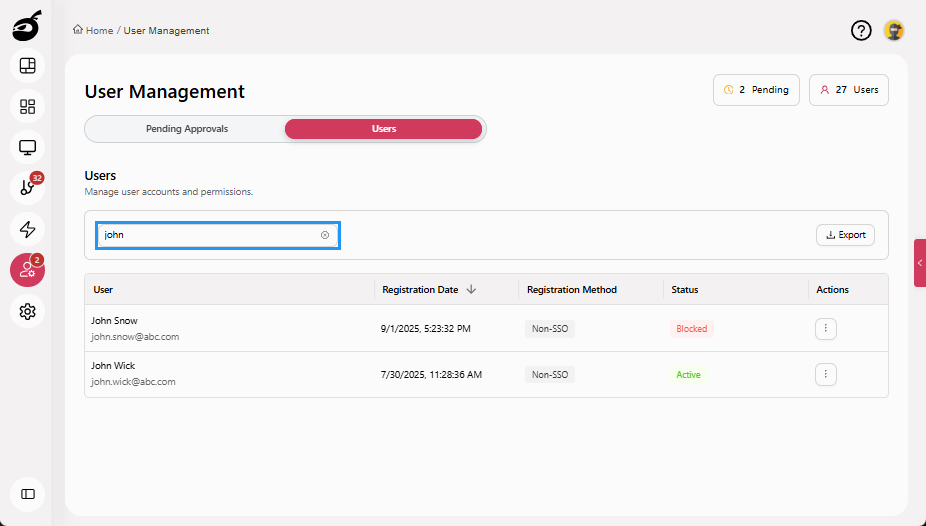
Search for the user using the Search Users bar above the user grid.
-
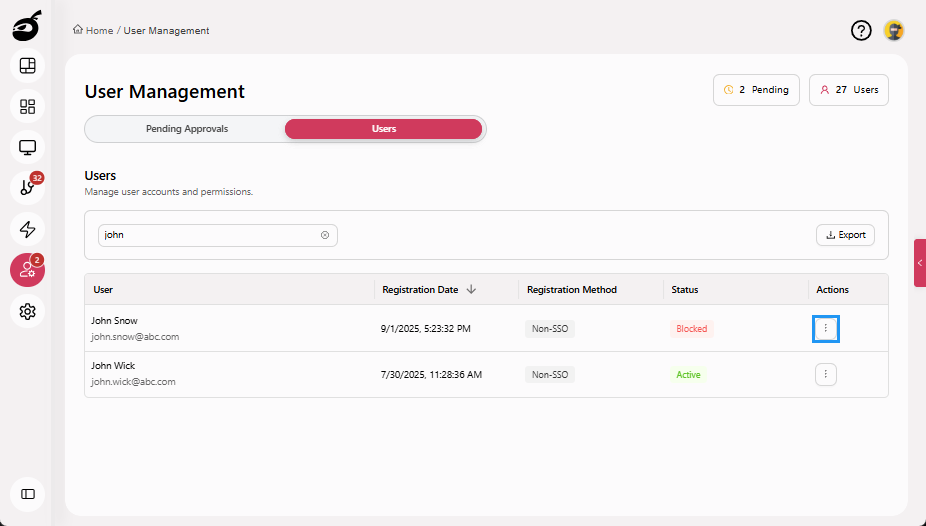
Click the Ellipsis ⋮ in the Actions column to open the options menu.
-
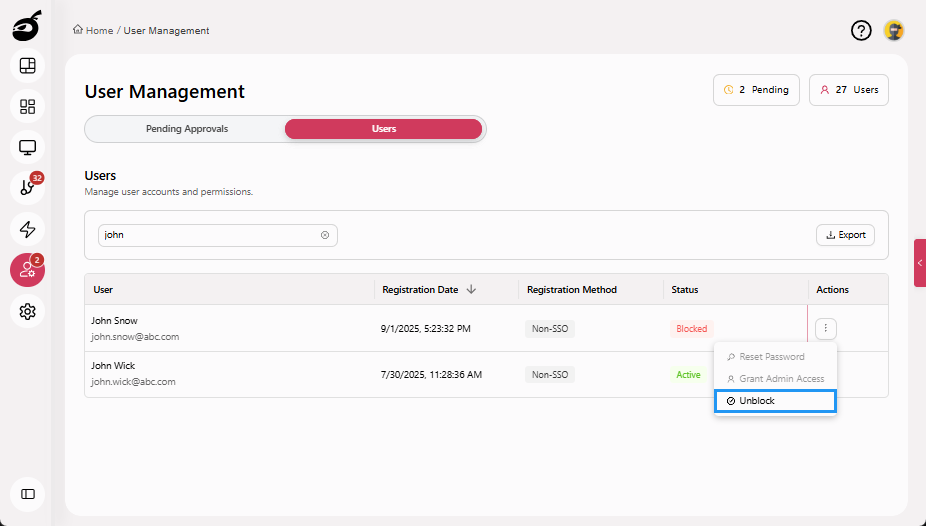
Click Unblock to unblock the user.
 tip
tipMake sure the issue prompting the block has been resolved before unblocking.