Manage Licenses
Manage your BuildNinja license to activate, renew, or upgrade your subscription and maintain uninterrupted access to licensed features. BuildNinja supports both online and offline activation methods:
- Online Activation: Activate your license instantly using the License Key through an internet connection.
- Offline Activation: When your BuildNinja server cannot access the internet, use the Distribution Key to activate your license manually.
Only administrators can activate and manage BuildNinja licenses.
Prerequisites
Before you begin:
- Register for a My Account profile at My Account if you do not already have one.
- Purchase or activate a BuildNinja license. To compare editions or purchase a license, visit the BuildNinja Pricing page.
Obtain License Key
-
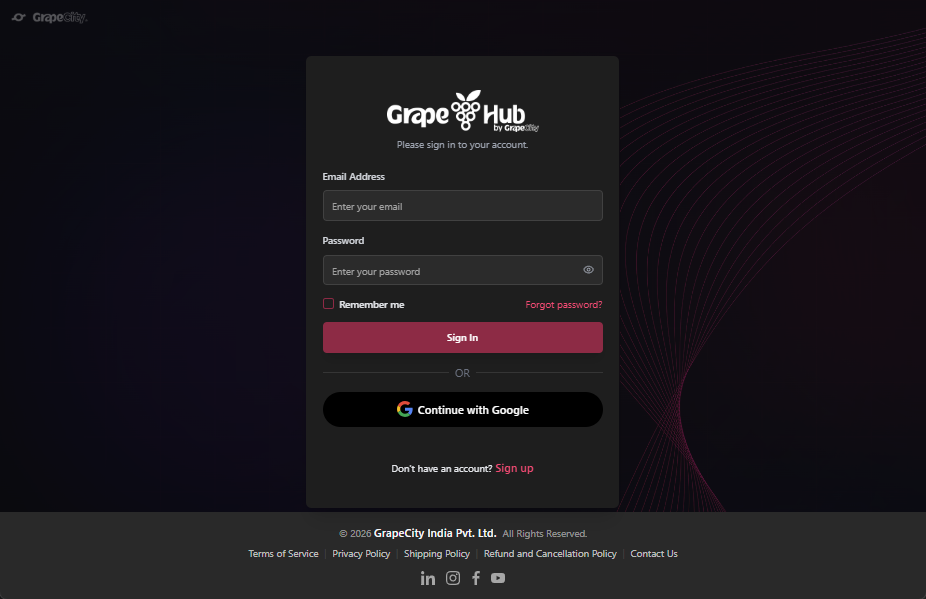
Open My Account in your browser.
-
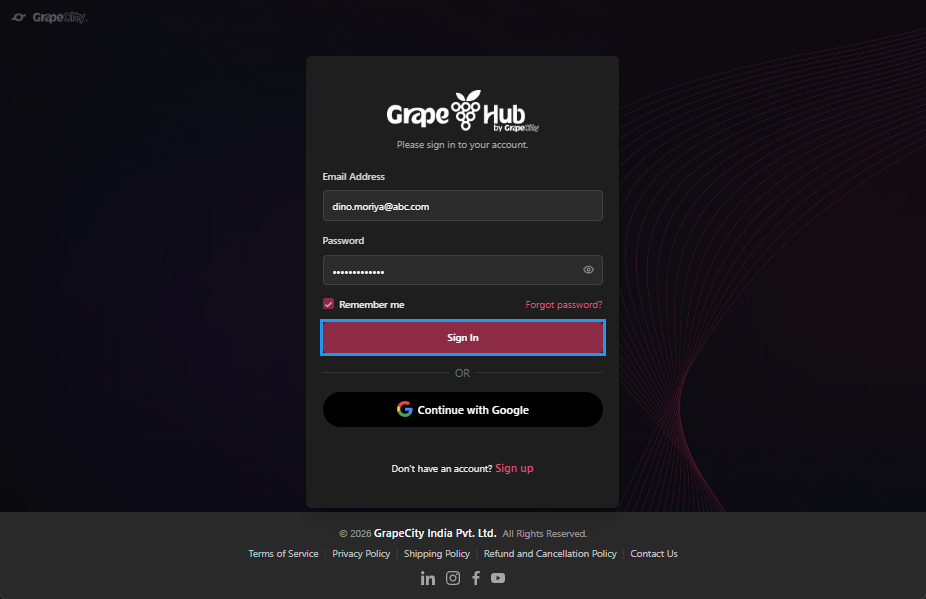
Enter your credentials and click Sign in.
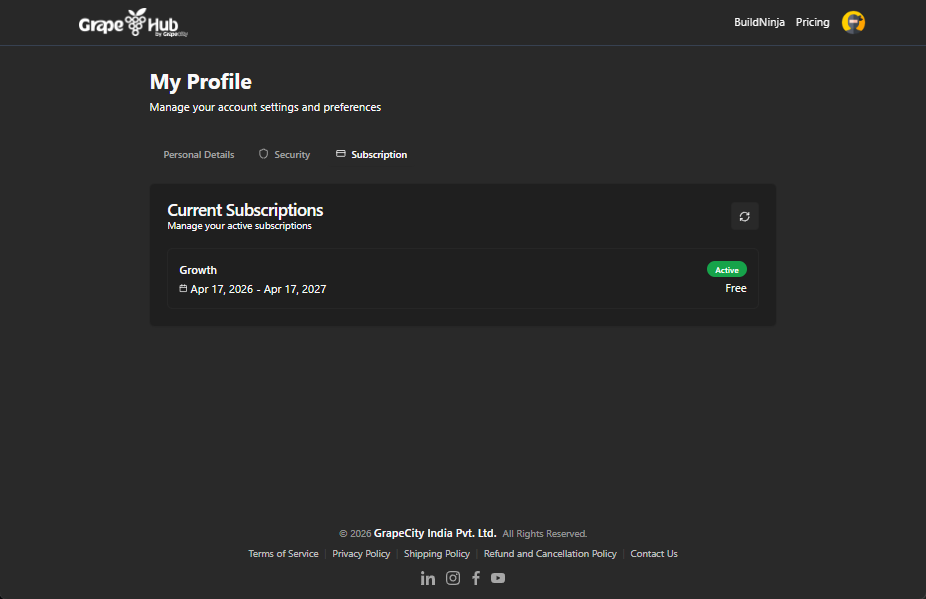
After you sign in, your active subscriptions will be shown.
-
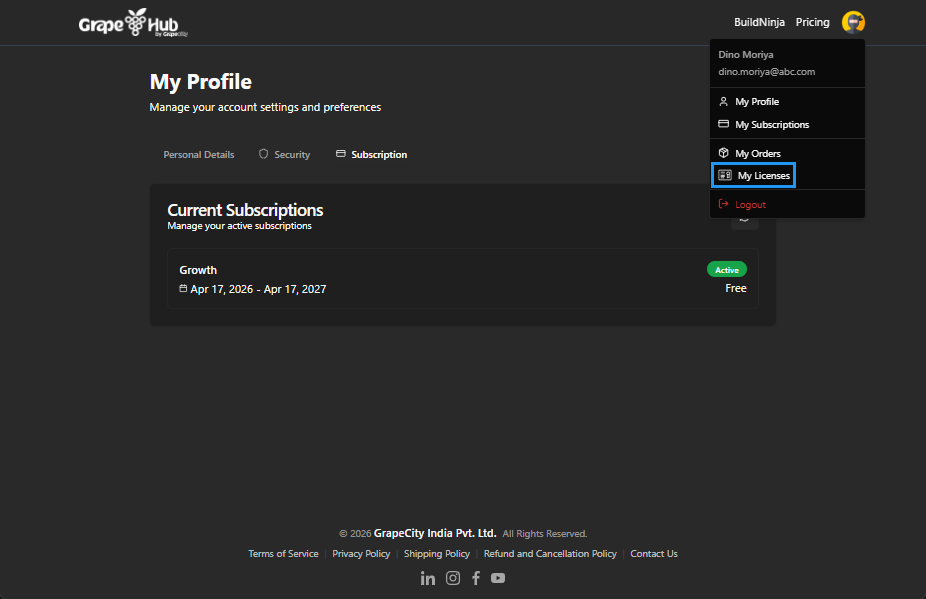
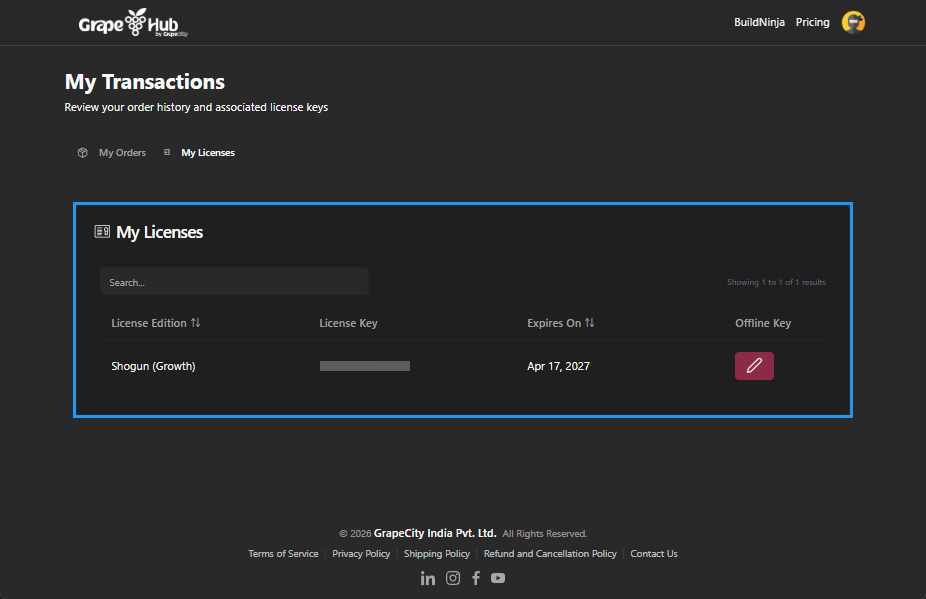
Click Profile and open My Licenses.
-
Locate your active license and copy the License Key for online activation.
 note
noteFor information about available license editions, features, and entitlements, see Licensing PolicyBuildNinja offers flexible licensing options for evaluation, small teams, and enterprise deployments. Your license determines the available platform limits, build capacity, and included entitlements..
Generate Distribution Key
-
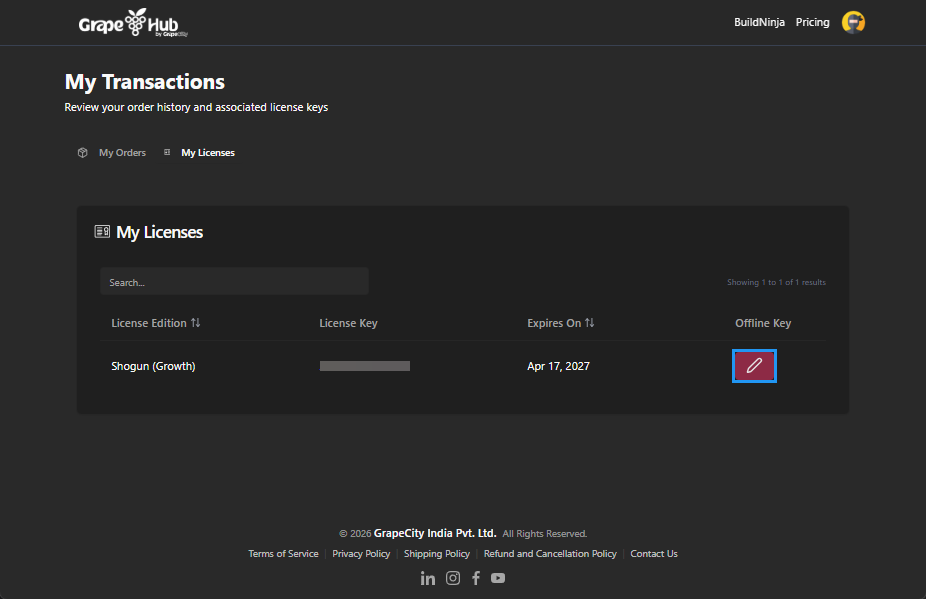
Click Profile, then open My Licenses from either the BuildNinja website or My Account.
-
Locate your active license and click Create Offline Key.
-
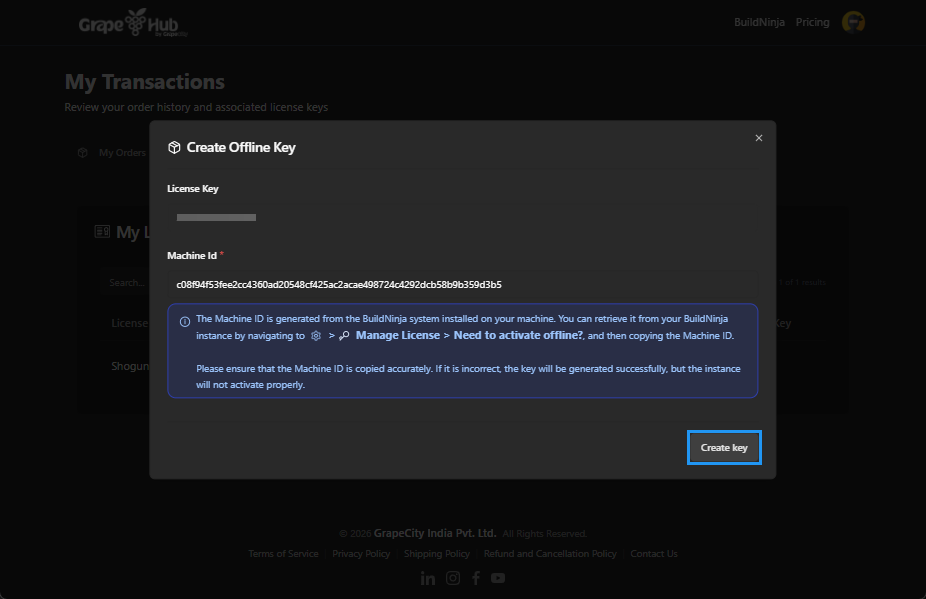
Enter the Machine ID of your BuildNinja system and click Create Key.
-
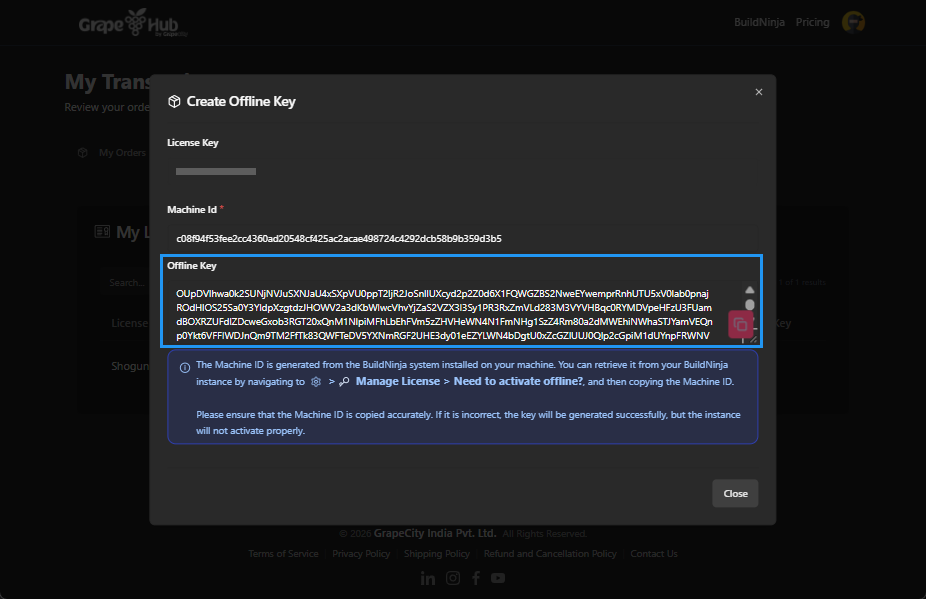
Copy the generated Offline Key and save it securely.
Access Manage License Tab
-
Sign in to your BuildNinja account.
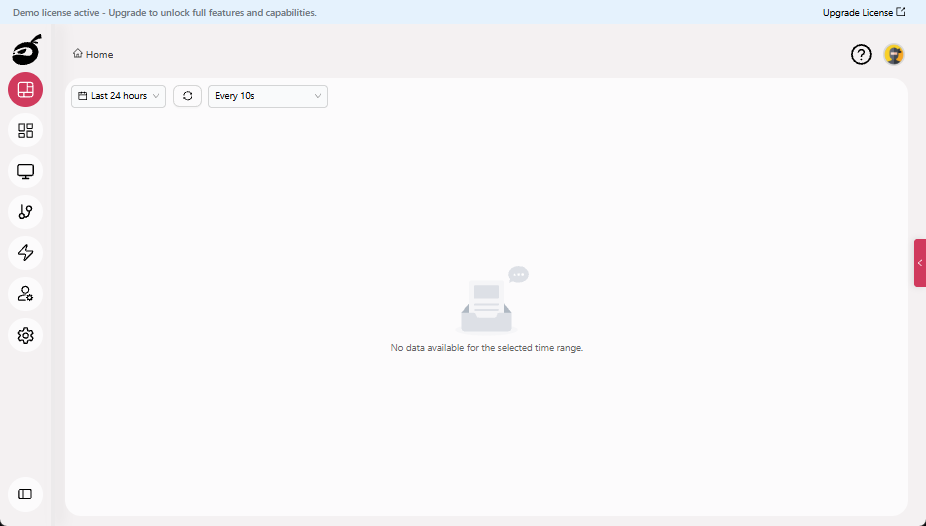
-
Open Manage License from Settings
 , or click Upgrade License on the banner at the top of the page to access Manage License directly.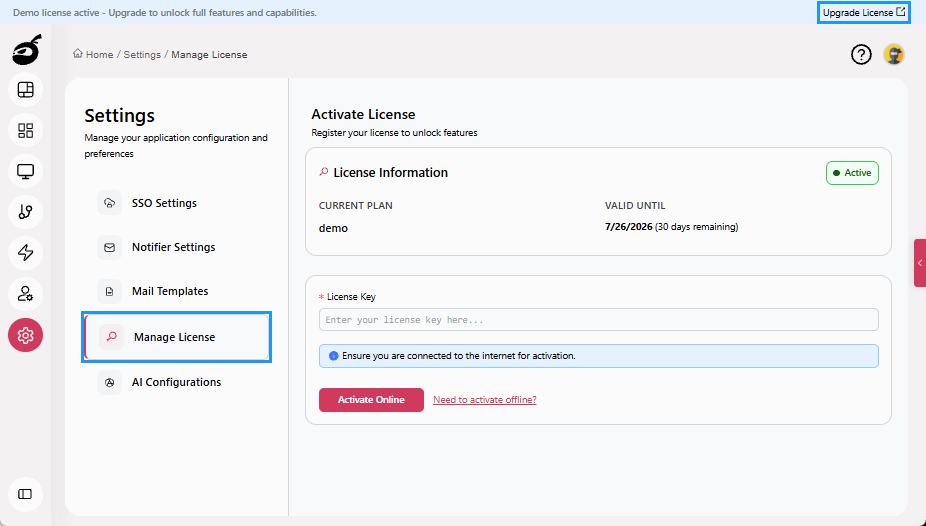
Activate Online
-
Enter your License Key.
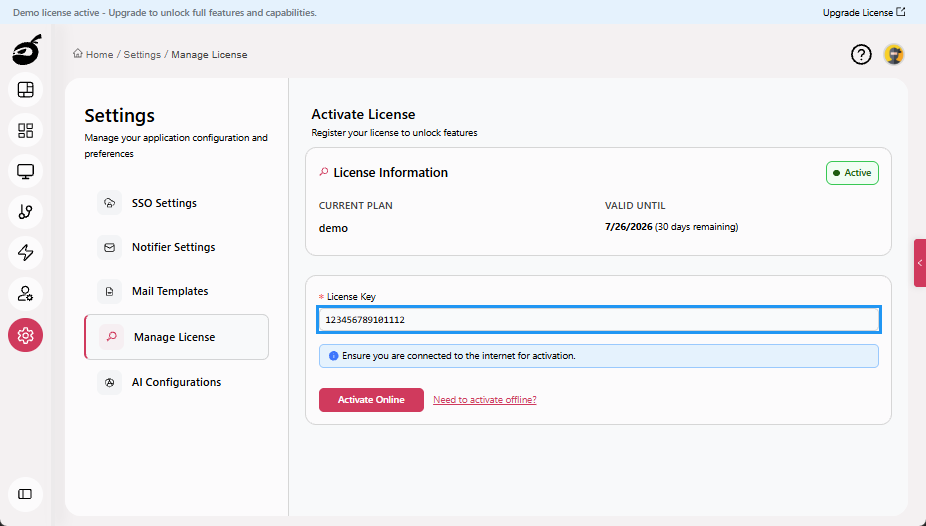
-
Click Activate Online.
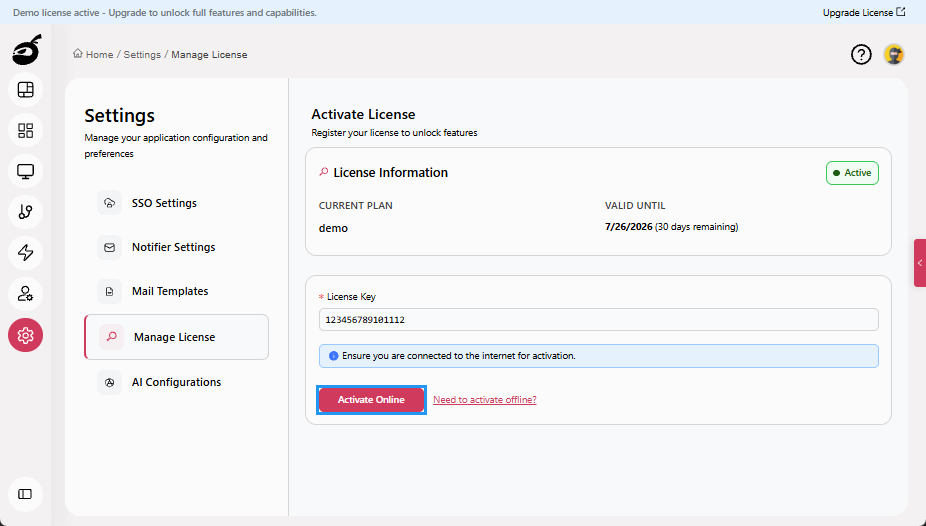 BuildNinja displays a confirmation message and updates your license status.
Activate Offline
-
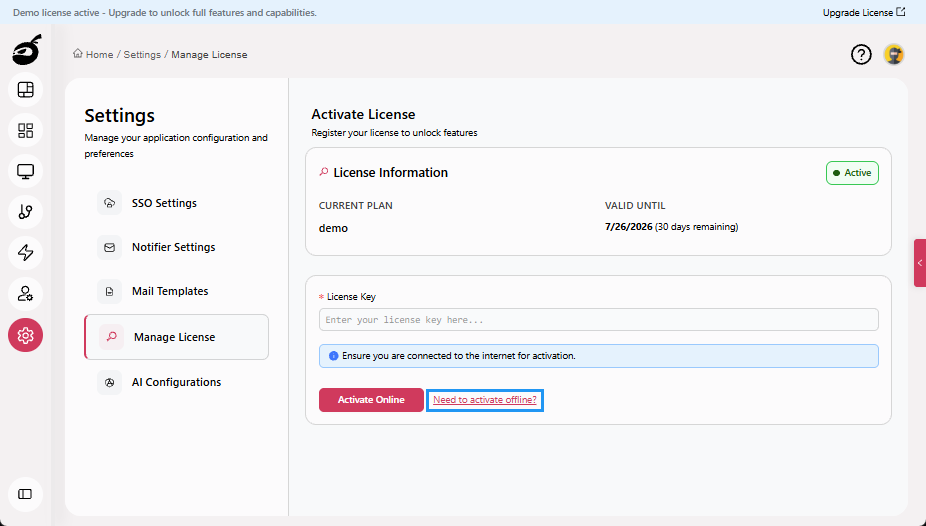
Click Need to activate offline?.
-
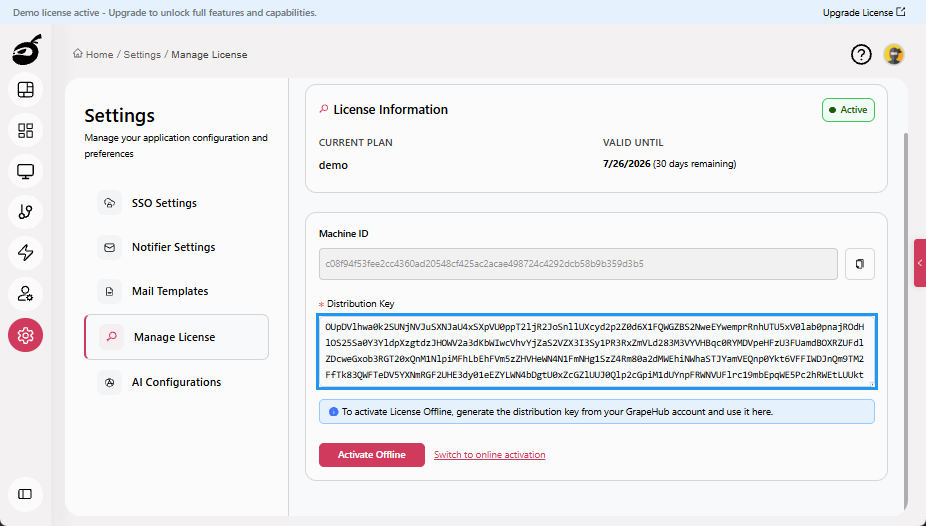
Enter your Distribution Key.
-
Click Activate Offline.
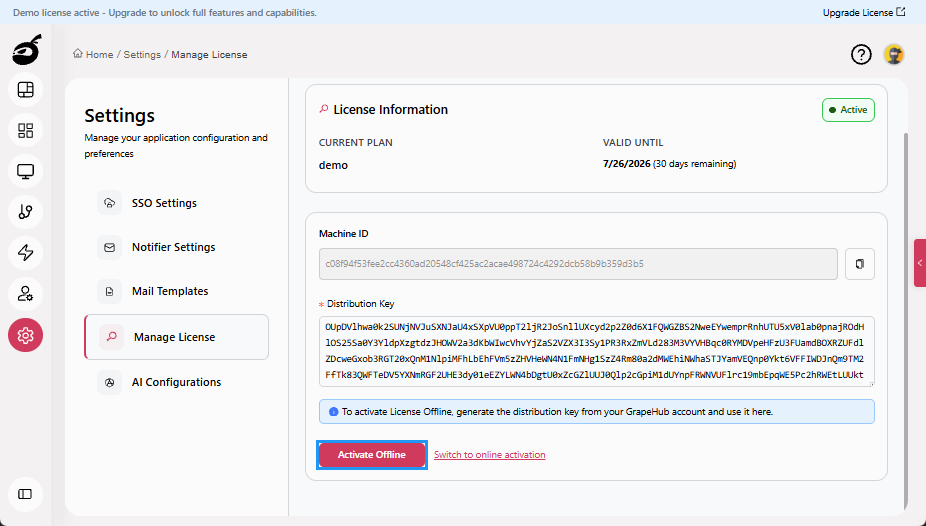 BuildNinja displays a confirmation message and updates your license status.