Delete Projects and Builds
Deleting projects and builds allows users to remove outdated or unnecessary projects, builds, and associated artifacts from the system. This helps maintain a clean, organized build environment and optimizes resource usage.
Deletion is a permanent action. It removes all associated artifacts, logs, and metadata. Use with caution, especially in shared or production environments.
Only administrators can delete projects and build configurations.
Delete Project
-
Navigate to Projects
 to access the project management interface.
 -
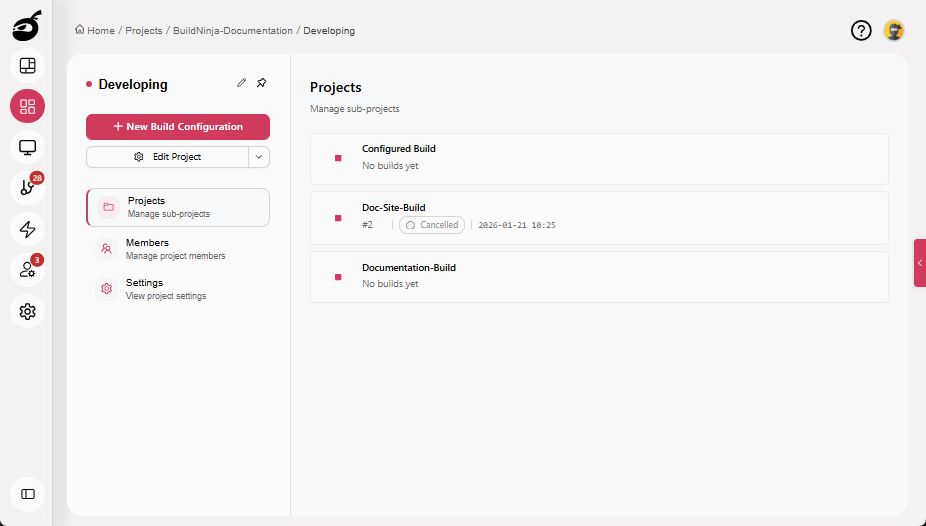
Navigate to the project you want to delete.
-
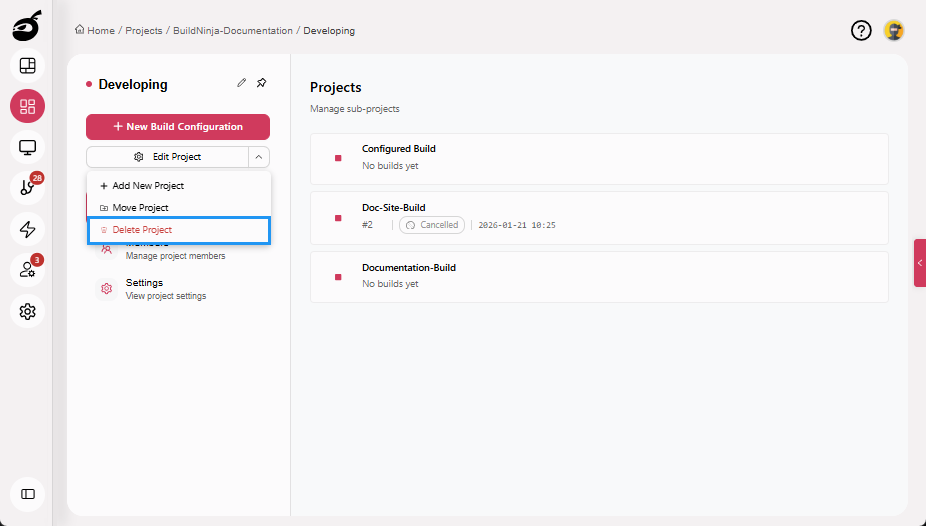
Click More Options dropdown and choose Delete Project. BuildNinja will prompt you to confirm the deletion.
-
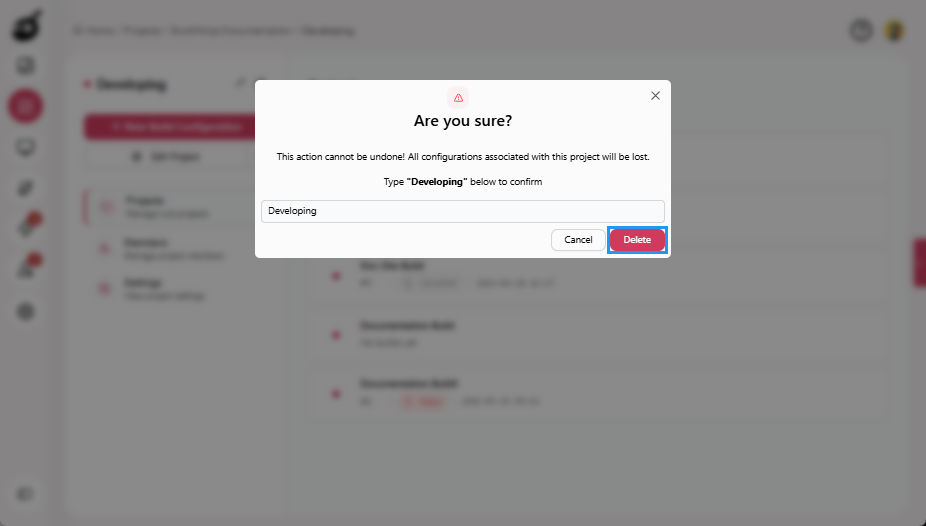
Enter the project name to confirm and click Delete to permanently remove the project.
Delete Build
-
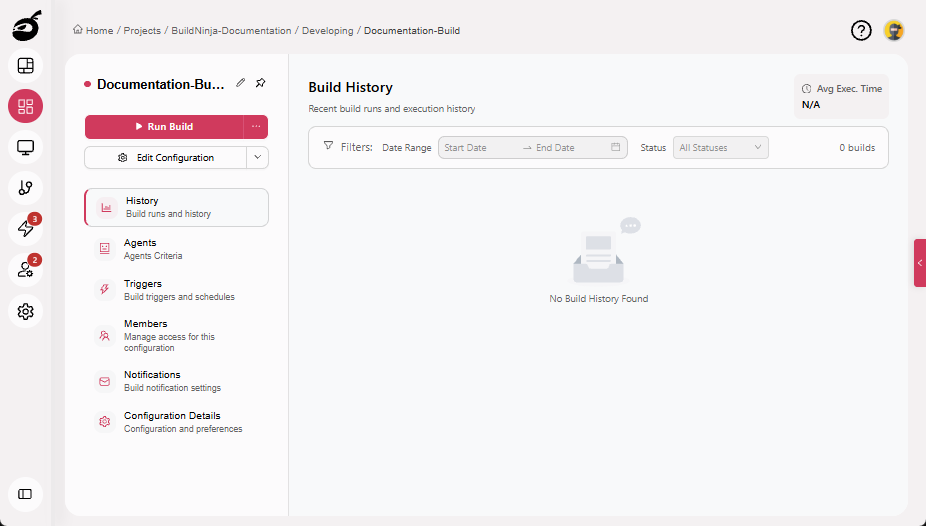
Navigate to the build configuration you want to delete.
-
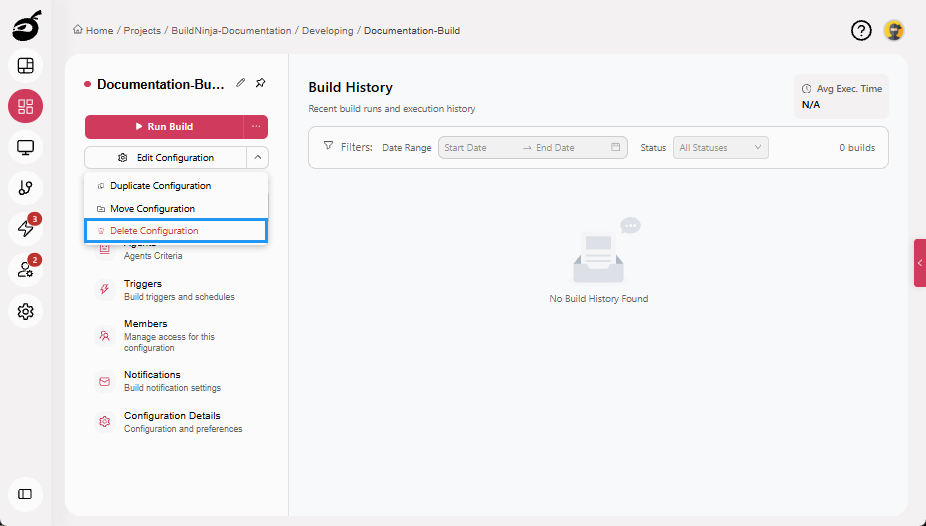
Click More Options dropdown and choose Delete Configuration. BuildNinja will prompt you to confirm the deletion.
-
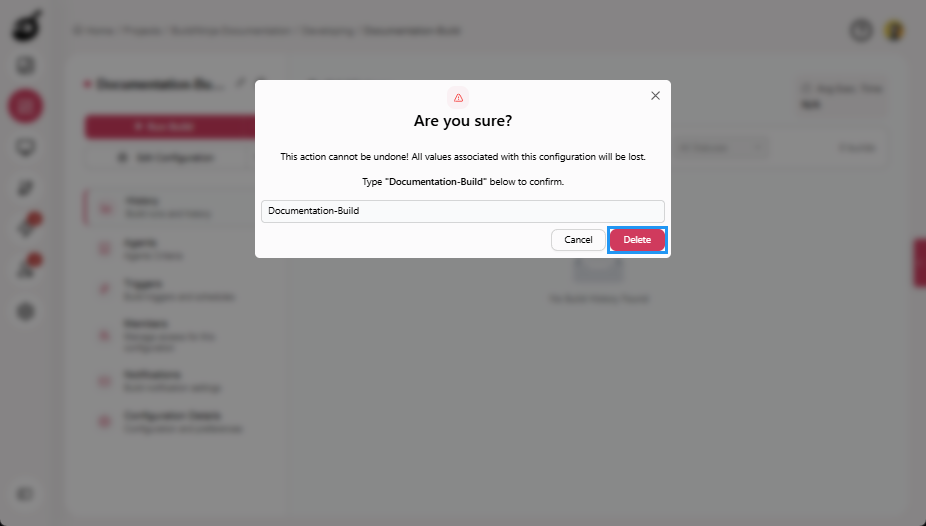
Enter the build name to confirm and click Delete to permanently remove the build.